
Bulletins and templates
A template lays out a bulletin. When you make one, Scriblet fills the template from your calendar, checks it, and saves it in Documents, ready to email.
Templates, making bulletins and sending email are for admins. Contributors can open the bulletins you make.
Creating a template
Section titled “Creating a template”Admins only
- On Templates, choose New template.
- Give it a name, like “Weekly bulletin”.
- Under What is it for?, choose Printed bulletin or Web page. For web pages, see Web pages.
- For a printed bulletin, choose Paper and fold: letter folded in half (4 panels) or in thirds (6 panels).
- Under What does it cover?, choose One date (a weekly bulletin), A date range (a schedule or rota) or A month (a monthly calendar or newsletter).
- Choose Create. The editor opens.
What it’s for can’t be changed later. What it covers can, in the editor.
Laying it out
Section titled “Laying it out”Admins only
For a step-by-step guide with pictures, see Laying out a template.
- Panels: a printed bulletin has a tab for each panel, like “Front cover” and “Inside left”.
- Blocks: drag blocks from Blocks into a panel, like Order of service, Roster lines, Calendar, Heading, Text or List table. Choose a block to change what it shows.
- Showing: choose dates to preview the template with your real calendar.
- The fit meter shows how full each panel is. If text runs past the edge, it says the panel “will not print”.
Choose Save when you’re done. If someone else saved the template while you were working, choose Load their version to see their changes. Your unsaved changes are lost.
Words typed into the template stay the same every time. Anything from the calendar changes with the dates.
A list is a table your organization keeps once, like the study classes and their rooms, or the church’s contacts. Any template can show it, and when a row changes, every bulletin made from then on shows the change.
Lists are on Lists. Admins make them, and anyone with console access can keep the rows up to date.
Making a list is for admins:
- Choose New list and give it a Name.
- Under Where it may appear, choose Printed bulletins only or Printed bulletins and web pages. Anyone with a page’s link can read it, so keep phone numbers and addresses on printed bulletins only.
- Name its columns, up to 6, and choose Make list.
- Choose Add row for each row, type in the cells, and choose Save.
Keeping the rows up to date is for anyone with console access. Open the list, change the cells, add, move or remove rows, and choose Save. Only an admin can change its name, its columns or where it may appear.
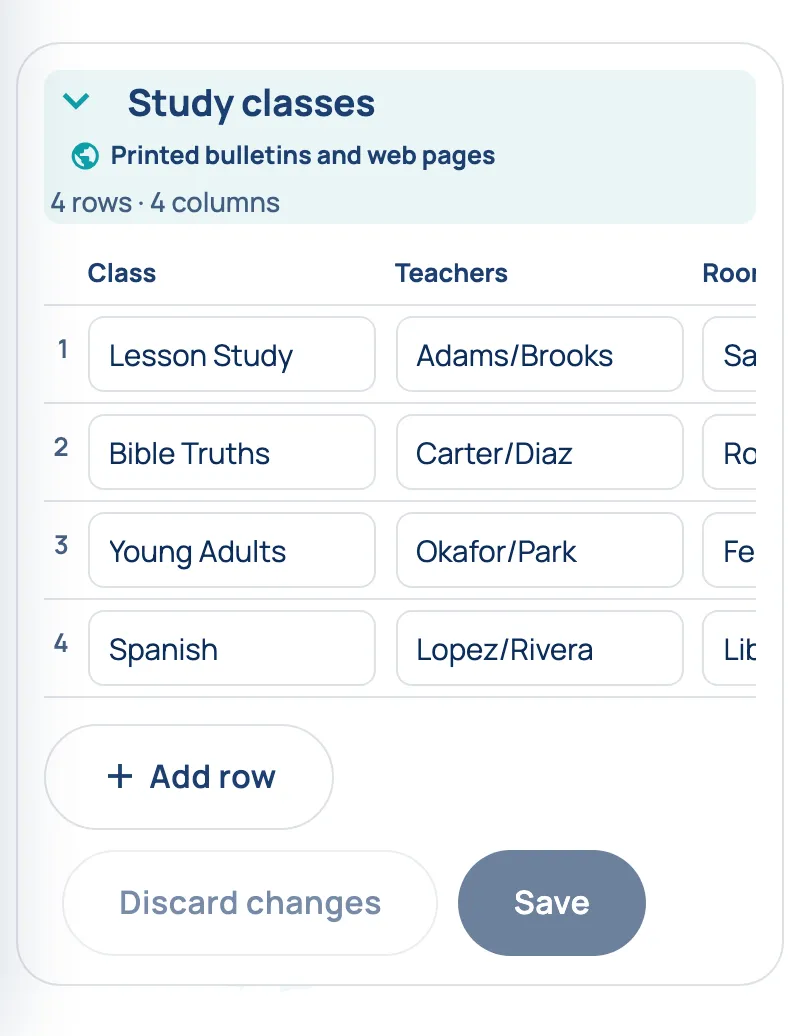
- Rows can be moved up and down, and columns left and right.
- A list can have up to 200 rows. An organization can have 20 lists.
- A column’s type is Text, or Links (web addresses or mailto:) for an address each row leads to, like a class’s study guide. A row can leave it empty. Links show only on web pages: see Lists and tables.
- Removing a column removes what every row has in it. A template that still shows that column draws an empty table, not just an empty column, until you untick the column in the template.
- Deleting a list can’t be undone. Scriblet tells you which templates show it: their table shows nothing until it’s given another list.
- Lists have no dates. A bulletin uses the list as it is when the bulletin is made, and a bulletin already made doesn’t change.
Putting a list in a template
Section titled “Putting a list in a template”Admins only
Drag a List table block (on a web page, Table) into the template.
- Under List, choose the list.
- Under Columns to show, tick the columns, put them in order, and give any a different header if you like.
- Choose Show the headers if you want them printed.
A printed List table can be laid out as Columns, or as Dot leaders (first … last), like a directory. A list for printed bulletins only can’t go on a web page.
If the block says “Choose a list for this table”, or that the list no longer exists or has lost a column, fix it in the block or on Lists. The bulletin can still be made, but that table is left empty.
Making a bulletin
Section titled “Making a bulletin”Admins only
- In the editor, choose the dates under Showing, and Save.
- Choose Make document.
- Check the name, then choose Make document again.
Scriblet makes the PDF, checks that everything fits, and proofreads it. This takes a moment.
When it’s Ready, choose Open or Download. It’s also in Documents.
A bulletin doesn’t change by itself. If the calendar changes, make it again. Making the same template for the same dates again replaces the earlier copy, so anyone with its link gets the new one.
If the proofread finds something
Section titled “If the proofread finds something”Admins only
Scriblet looks for misspellings, wrong weekdays, clashing times, someone in two places at once, and leftovers like “TBD”. It never changes anything itself.
Each finding shows where it is and what it noticed. Fix the calendar and make it again, or continue if these are fine as they are.
- Make it again after fixing the calendar.
- Continue anyway if the findings are fine.
If the proofread isn’t available, you can Try again or Continue without proofread.
If it doesn’t fit
Section titled “If it doesn’t fit”Admins only
A printed bulletin that runs past the edge of a panel can’t be made. The card says which panel and by how much. Shorten the text in the calendar or change the template, then make it again.
If making it fails, choose Try again. That usually works.
Emailing a bulletin
Section titled “Emailing a bulletin”Admins only
On Email, under Send:
- Under To, choose Members for everyone on your email list, Contributors for everyone under People, or These addresses for up to 20 addresses.
- Write a Subject, and a Message if you like.
- Under Files, tick the bulletin and anything else to send, up to 10.
- Choose Send.
Send it to yourself first. These addresses starts with your own email, so you can see it before your members do.
- Files go as links, not attachments. A web page opens in the browser, and anything else downloads.
- Every email shows as “Scriblet”, so put your organization’s name in the subject.
- A big list takes a while. Scriblet sends gradually, and shows how far it’s got. You can Stop sending, but what’s gone can’t be taken back.
- Members can unsubscribe from a link at the bottom of each email.
- An email to Contributors goes to everyone under People who has an email address, admins included. It goes straight away, with no unsubscribe link, because it’s your organization writing to its own team.
Sent shows your recent emails and how they went.
Your email list
Section titled “Your email list”Subscribers, on Email, shows everyone on your organization’s email list: who is Receiving, and who has Opted out or Unsubscribed with the link at the bottom of an email. Anyone with console access can see it.
Addresses can’t be added or removed here. Your list is loaded for you by Scriblet, and people can add themselves:
- To join, someone emails your organization’s Scriblet address with the subject subscribe. They get a reply saying they’re on the list. Someone who had unsubscribed is put back the same way. The Scriblet address is in Settings.
- To leave, they use the unsubscribe link at the bottom of any email.
To check an address, type the whole address in the box and press Enter. Scriblet says whether it’s on the list and receiving email, has opted out, or was taken off.
An address mail can’t reach is taken off the list. When an email bounces, Scriblet removes the address quietly, and it stops counting towards your members. The check tells you when and why it was taken off. Emailing subscribe from it puts it back.
Documents
Section titled “Documents”Documents holds the bulletins you make and files you upload. Contributors’ emailed files arrive here too.
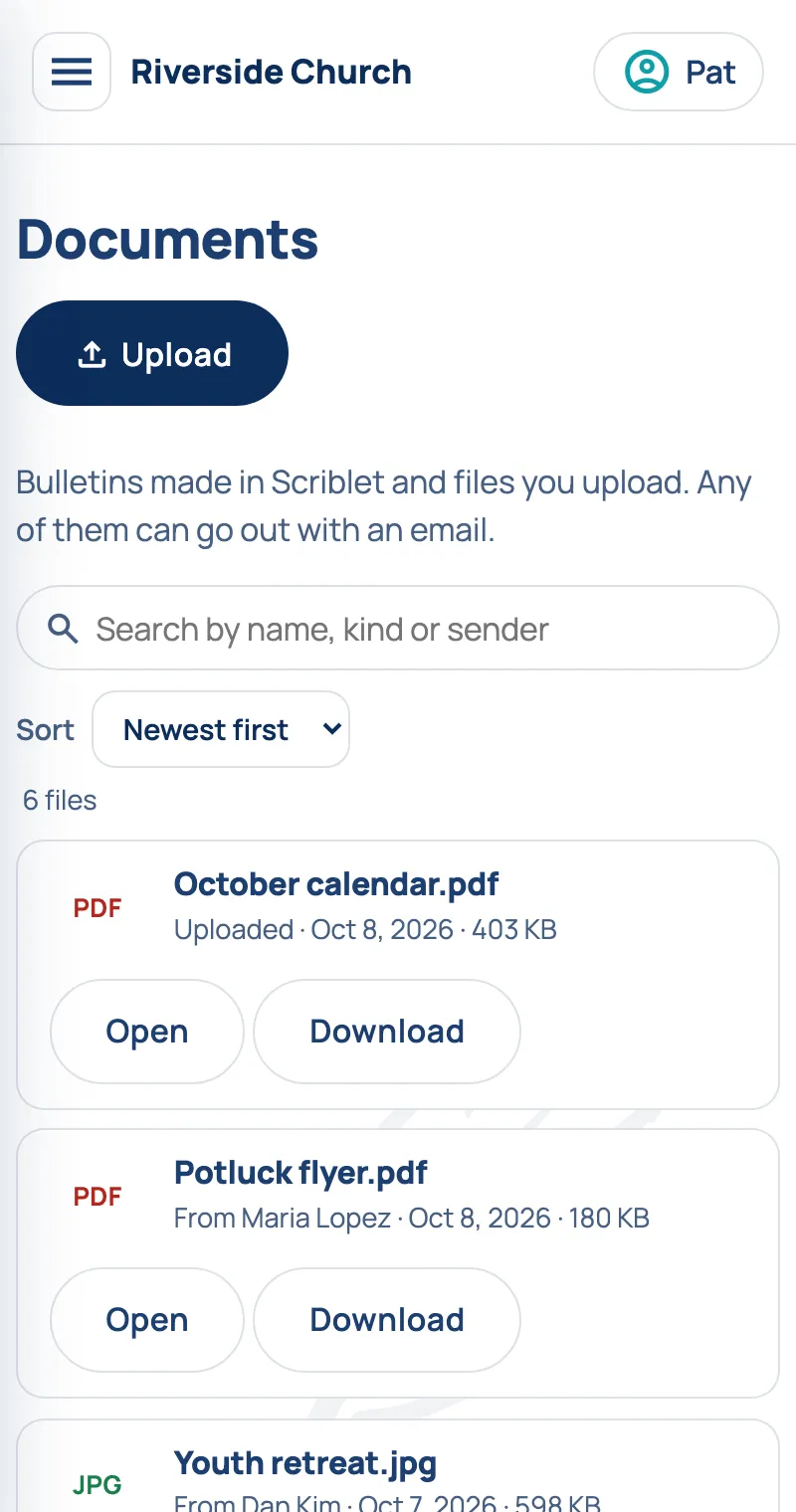
- Upload adds files: PDFs, pictures, and Word, Excel, PowerPoint or text files, up to 25 MB each.
- Rename and Delete are for admins. Deleting a file breaks its link in emails already sent: people see that it’s no longer available.