
People and roles
Admins only
People lists everyone who can send updates for your organization. Adding someone lets them text and email updates straight away. Inviting them to the console is a separate step, only for people who need to sign in.
Adding a person
Section titled “Adding a person”- On People, choose Add person.
- Enter their Phone number and Email. Both are required. Name and Notes are optional.
- Choose Add.
They’re added as a contributor, and Scriblet emails them a welcome email with your organization’s Scriblet number and address. The Welcome email column shows when it was sent.
- To send it again, choose Resend. You can resend once every 5 minutes.
- The Texting column shows whether they’ve texted START: “Opted in”, “Opted out”, “Pending” or “Hasn’t texted yet”. Only they can change this, by texting START or STOP.
- Two people can share an email address, like a couple. Each needs their own phone number.
If Scriblet won’t add them
Section titled “If Scriblet won’t add them”- “Somebody on People already has that phone number.” They’re already on your list.
- “That person is already one of another organization’s people.” A person can only belong to one organization. Email support@scriblet.io.
- “This organization isn’t finished being set up.” The console takes you to Finishing your setup. Once everything there is done, you can add people. See Setting up.
Changing someone’s details
Section titled “Changing someone’s details”Choose the pencil (Edit) on their row. You can change their email, name and notes.
A phone number can’t be changed. To use a different number, add the person again with the new number, then remove their old entry.
Removing a person
Section titled “Removing a person”Choose Remove from People on their row.
- They can no longer text or email updates. Scriblet treats them like a stranger.
- Their console access ends, and their calendar alerts end.
Everyone on People is a contributor or an admin. The owner is the admin who set the organization up. What each can do is in What each role can do.
Inviting someone to the console
Section titled “Inviting someone to the console”Only people who need to sign in need an invitation.
-
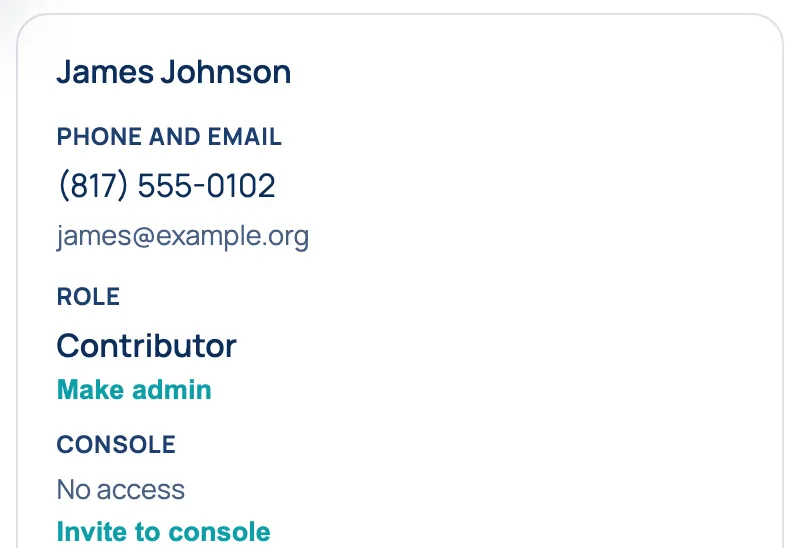
On their row, choose Invite to console.
-
Choose Admin or Contributor.
-
Choose Send invitation.
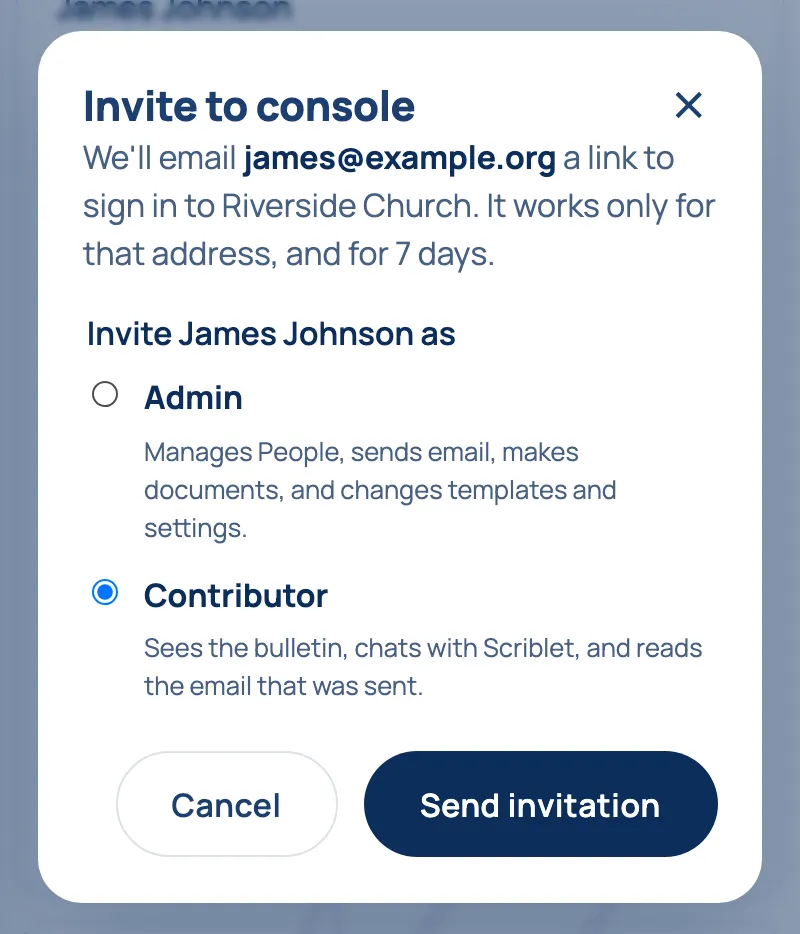
They get an email with a link. What they do next is in Signing in. It works only for that email address, only once, and for 7 days. They sign in, or create a Scriblet account, with that address.
The Console column shows “Invited”, then “Active” once they’ve accepted.
- Invite again sends a fresh link and stops the old one. You can do this once every 5 minutes.
- Cancel invitation stops the link. They stay on People.
- Changing their email cancels an invitation that’s out. Invite them again afterwards.
If they can’t accept:
- “This invitation can’t be used.” The link expired, was replaced, or was already used. Invite them again.
- “Sign in with the address the invitation was sent to.” They signed in with a different email address.
- “You already belong to an organization.” A Scriblet account can only belong to one organization.
Changing a role
Section titled “Changing a role”- Make admin turns a contributor into an admin. Any admin can do this.
- Make contributor turns an admin back into a contributor. Only the owner can do this.
It takes effect at once for someone who has signed in, or when they accept their invitation.
Taking console access away
Section titled “Taking console access away”Choose Remove access in the Console column. They can’t sign in any more, but they stay on People and can still text and email updates.