
The calendar
Everything contributors send goes onto your organization’s calendar. In the console, you see it on Home, and you can change it there or by asking Scriblet.
Home shows the coming service day, laid out the way one of your templates lays it out.
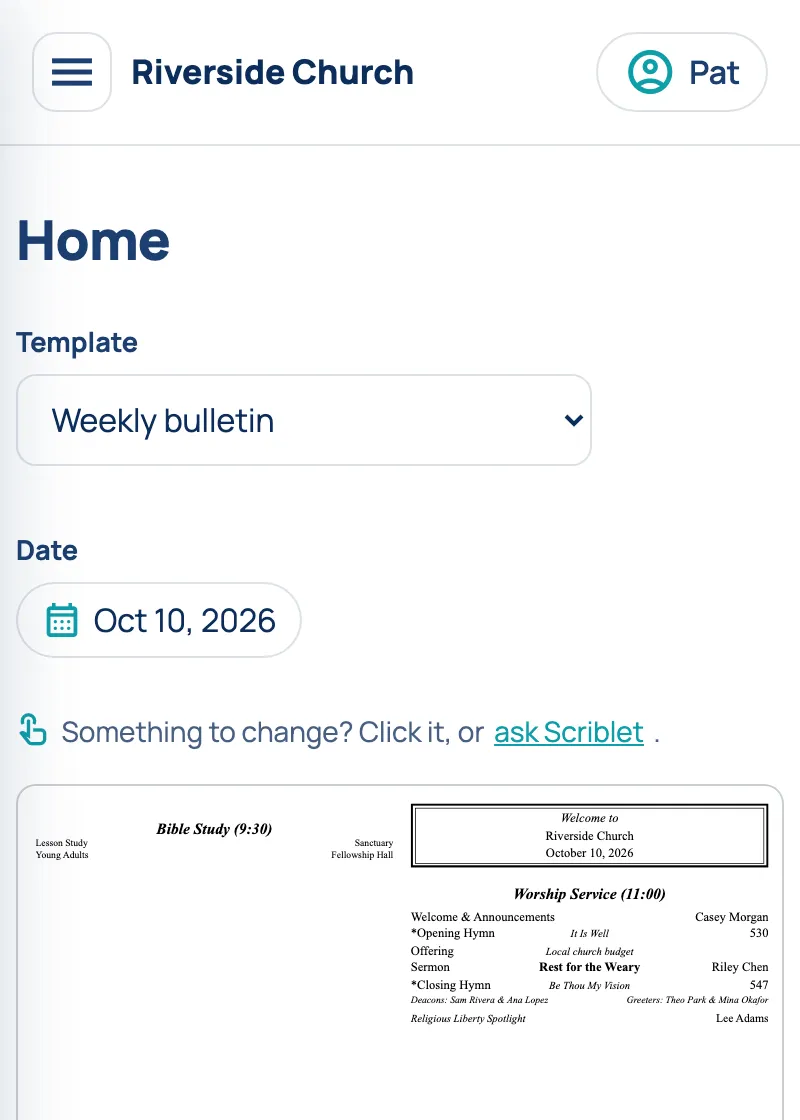
- Template chooses which template to see it through.
- Date, Dates or Month chooses when, depending on the template. Back to returns you to the coming service day.
A cancelled week of a repeating event stays on the calendar, with “— cancelled” after it.
If Home says “No templates yet”, make one first. See Bulletins and templates.
Changing something
Section titled “Changing something”Click the item on Home. A small menu opens with the item’s name, its date and what it says now.
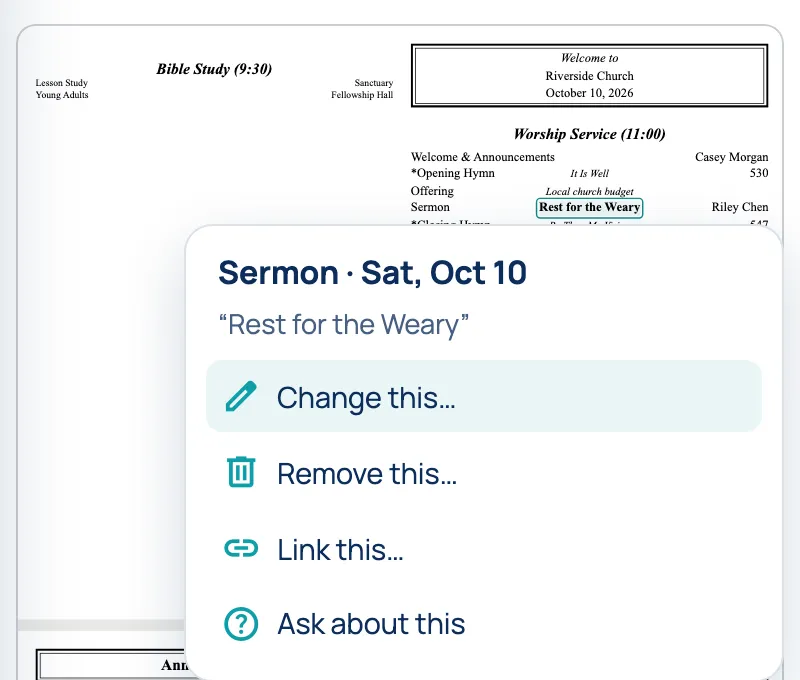
Change this… opens a box with the item’s current words. Type what it should say, like “It Is Well 530” for a hymn, and choose Change.
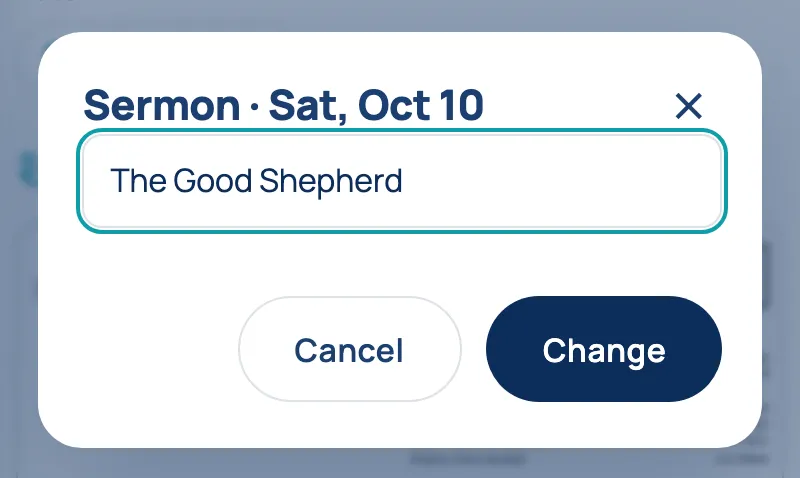
- Scriblet reads it the way it reads a contributor’s text, so a hymn’s title and number, or a person’s name, end up in the right place.
- It only ever changes that one item.
- On a repeating event, it changes that date only.
If someone else changed the item after you opened the box, Scriblet asks before replacing it. Its question opens in the chat. Answer there.
Remove this… and Ask about this start a message in the chat for you. Finish it if you need to, then send it.
Link this… is for admins. See Adding a link to an item.
If you click words that are part of the template itself, the menu says “This is part of the template”. An admin changes those in the template. See Bulletins and templates.
Asking Scriblet
Section titled “Asking Scriblet”Ask Scriblet, on every page, opens a chat. Write to it the way a contributor texts: updates, corrections and questions all work.
Ruth is greeting instead of Karen on October 17.
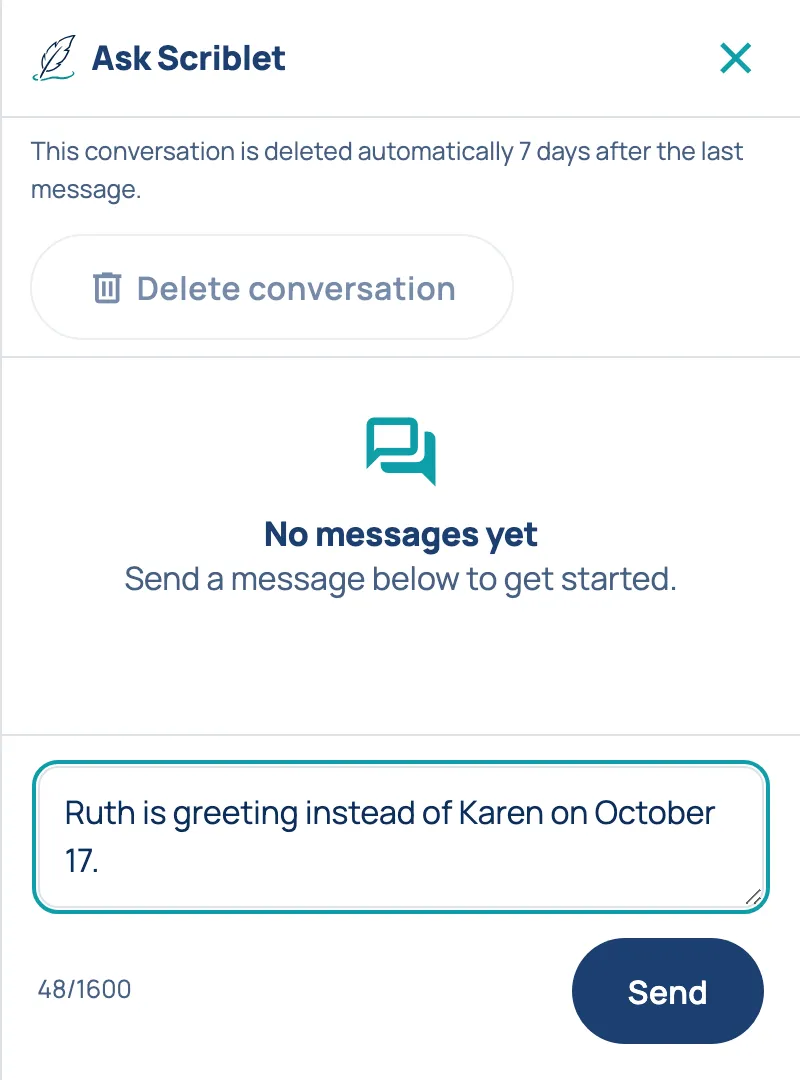
- One question at a time. If Scriblet asks you something, answer it before you send something else or use the change box.
- The chat is deleted 7 days after your last message. What you recorded stays on the calendar. You can also choose Delete conversation at any time.
- Messages can be up to 1,600 characters.
Adding a link to an item
Section titled “Adding a link to an item”Admins only
On a web page, an item can lead somewhere, like a sign-up form, a flyer or an email.
- Click the item on Home, or on the template editor’s canvas, and choose Link this…
- Pick a document or page from your folder, or type a web address starting with https://, or an email link starting with mailto:
- Choose Add the link.
To change or remove it, open Link this… again.
- An email link opens the reader’s email app with a new message to the address, like
mailto:office@example.org. Add a subject and message if you like:mailto:office@example.org?subject=Potluck&body=Count%20me%20in. Write a space as %20, and a + in an address as %2B. - Links only show on web pages, never on printed bulletins.
- A page shows a new link once you make it again. See Web pages.
- Contributors can’t set links by message, and a change they send keeps the link. If the item is removed, its link goes too.
- A repeating event has its own link, set in its dialog. See Repeating events.
Automatic links
Section titled “Automatic links”Admins only
An automatic link gives an item its link every week, without setting each one by hand: every opening song leads to its hymn, or every scripture reading to its passage. When a contributor sets or changes the item, the link follows.
Automatic links are at the top of Watches, for admins.
- Choose Add an automatic link.
- Under Item, choose the item, like Opening song or Scripture.
- Under Link to, choose Bible.com, BibleGateway or SDA Hymnal, or Type a link and add a part where the item’s own words go.
- The Example shows what the link will be for the next one on the calendar. Choose Add.
- It applies to what’s already on the calendar as well as what’s set from now on.
- It replaces a link set with Link this… To keep a link you set by hand, turn the automatic link off with its switch.
- Repeating events keep their own link.
- An automatic link is a web address, never an email link.
- If Scriblet can’t read the item’s words, like “See insert” for a scripture, that week gets no link.
- Turning one off or deleting it keeps the links it already set.
Repeating events
Section titled “Repeating events”Recurring lists events that happen on a pattern, like a prayer meeting every Wednesday or a potluck on the first Sabbath of the month. They appear on the calendar by themselves.
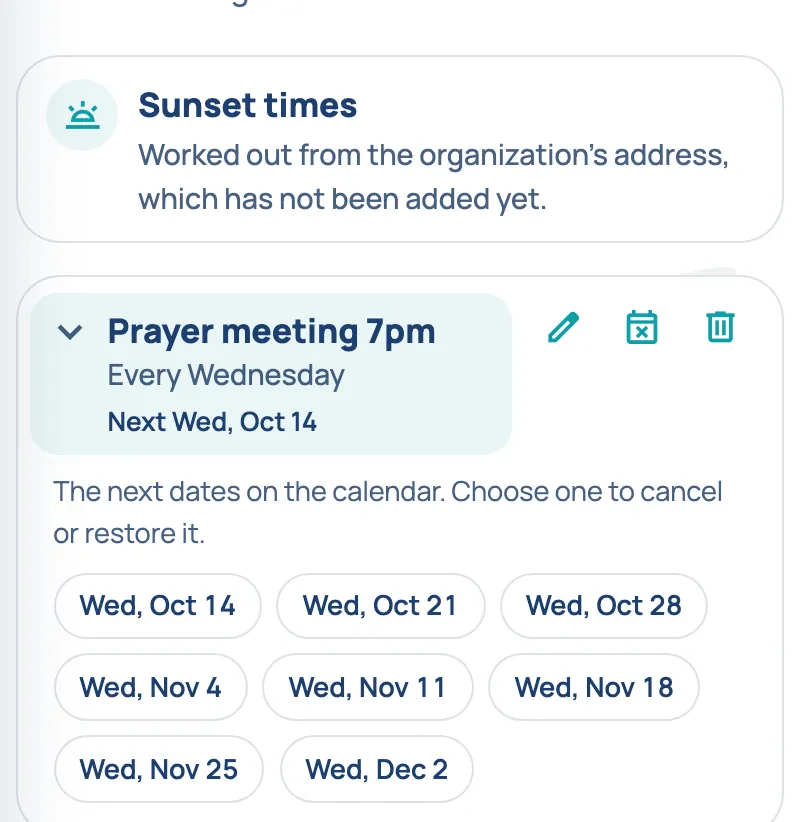
- Add recurring event: say what it says on the calendar (up to 2,000 characters), how often, and when it starts. You can give an end date too. A preview shows the next five dates.
- Link (optional): on a web page, each week of the event leads here, like a sign-up form, a flyer in the folder, or an email link. The link stays when you change the event, as long as you leave it in the dialog.
- Change: choose the date the change starts. Weeks before it stay as they were.
- End: choose the last date. Nothing after it appears on the calendar.
- Remove: takes it off the calendar entirely, including past weeks. To stop it from a date, use End instead.
One week at a time: open the event and choose a date. Cancel this date marks that week cancelled. Restore this date or Undo the change puts it back the way the pattern says.
Contributors can use the Recurring page too, and can change or cancel one week by text or email.
Sunset times
Section titled “Sunset times”Sunset times, at the top of Recurring, puts a line like “Sundown at 7:42 PM” on the days you choose. The time is worked out from your organization’s address, so add the address in Settings first.
Choose Change to pick the days and the words before the time, then turn it on.
Turning sunset times on and changing them is for admins. Contributors see what’s set.
Suggestions
Section titled “Suggestions”Suggestions lists messages from contributors that ask something of you, rather than give a fact for the calendar. Nothing was recorded from them, and the sender was told their message was passed on.
If something in a suggestion belongs on the calendar, send it through the chat yourself, then Delete the suggestion.
Deleting a suggestion is for admins. Contributors see who sent it by their phone number or email address, not their name.
Messages from people who aren’t contributors
Section titled “Messages from people who aren’t contributors”Admins only
When someone who isn’t a contributor emails your Scriblet address, Scriblet doesn’t record anything from it. Each administrator gets an email titled “Approval needed: …”, with their message. To accept it, either:
- Add them as a contributor in People, and ask them to send it again, or
- Send the update in yourself.
If it doesn’t belong on the calendar, there’s nothing to do. Replying to that email goes to the sender, not to Scriblet.
Files they sent wait on the Incoming page. Approve adds one to Documents. Reject deletes it, and the sender isn’t told.