
Laying out a template
Admins only
The template editor is where you lay out a bulletin or a web page. You drag blocks onto the page and choose what each one shows. Each time you make a bulletin, Scriblet fills them from your calendar.
It’s easiest on a computer, because the editor needs a wide screen.
1. Start a template
Section titled “1. Start a template”-
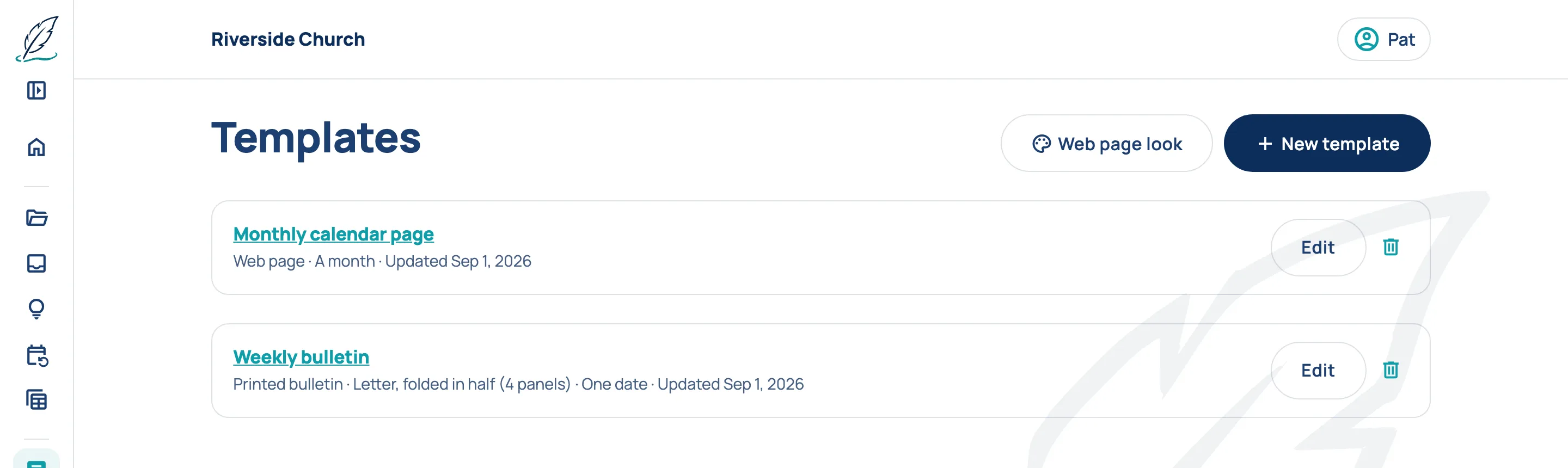
In the menu, choose Templates, then New template.
-
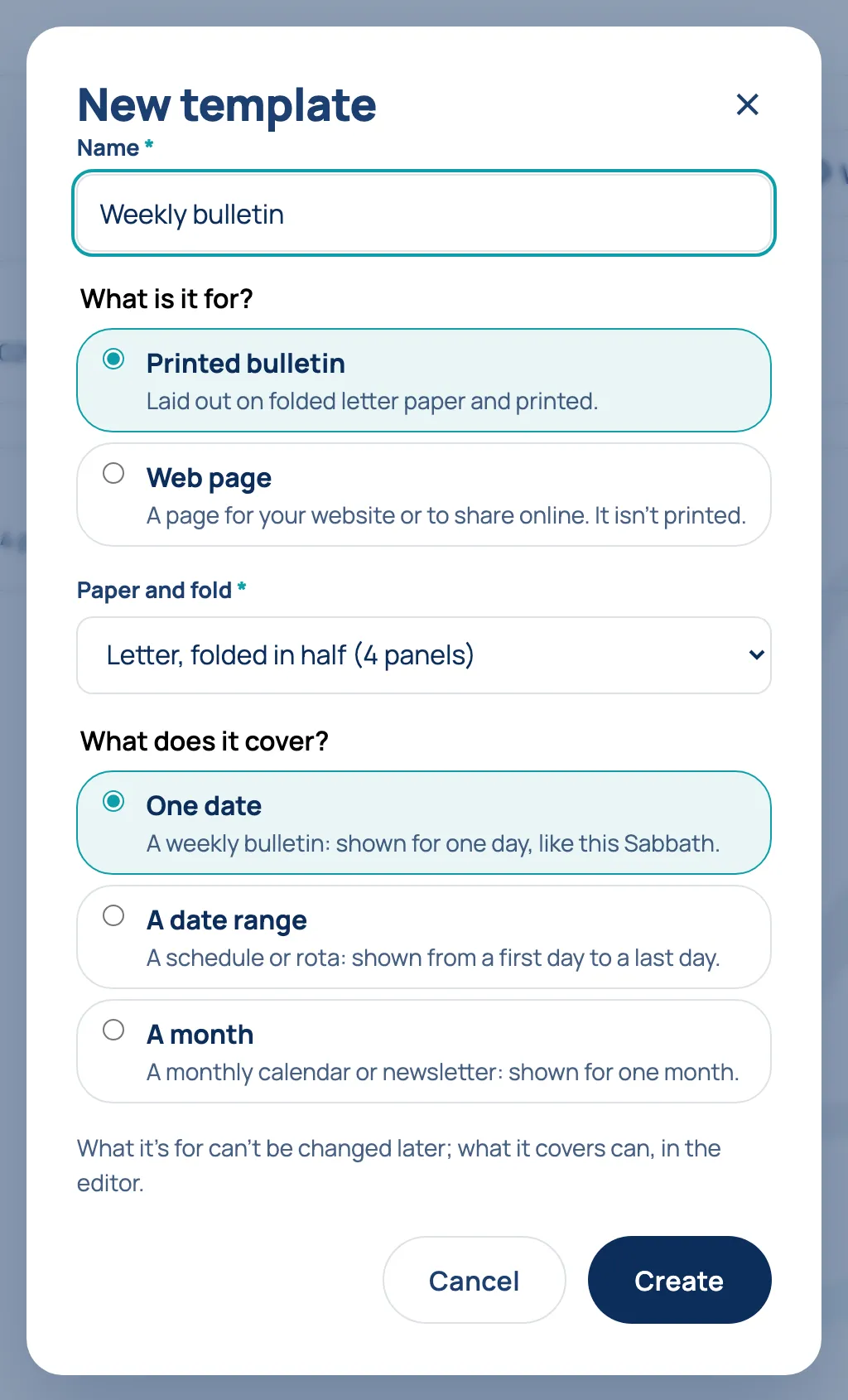
Give it a Name, choose what it’s for and what it covers, and choose Create. See Creating a template.
To open a template you’ve already made, choose its name or Edit.
2. Find your way around
Section titled “2. Find your way around”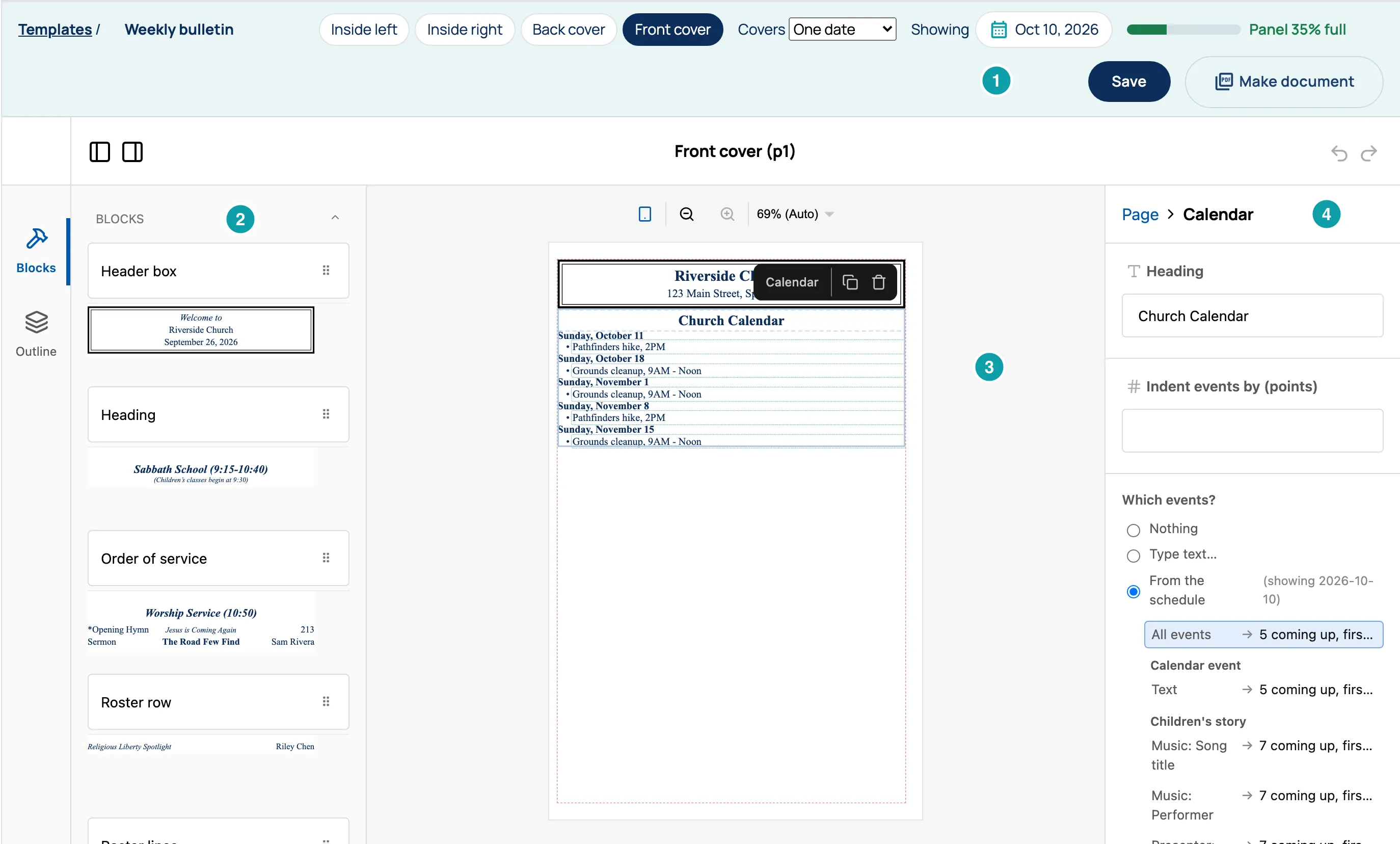
- The bar along the top: the template’s name, its panels, the dates it shows, Save and Make document.
- Blocks: the pieces you can put on the page. Outline, below it, lists what’s on the page now.
- The page: what the panel will look like, filled from your calendar.
- Settings: what the block you’ve selected shows.
Templates, at the top left, takes you back to your templates.
3. Choose a panel and the dates
Section titled “3. Choose a panel and the dates”
- Panels: a printed bulletin has a tab for each panel, like Inside left and Front cover. Choose one to work on it. The editor opens on Inside left.
- Covers: One date, A date range or A month. You can change it here.
- Showing: the dates the page is filled with. Days with something on the calendar are marked. Make document uses these dates too.
- The fit meter, like “Panel 35% full”, shows how full the panel is. It’s only on printed bulletins.
4. Add a block
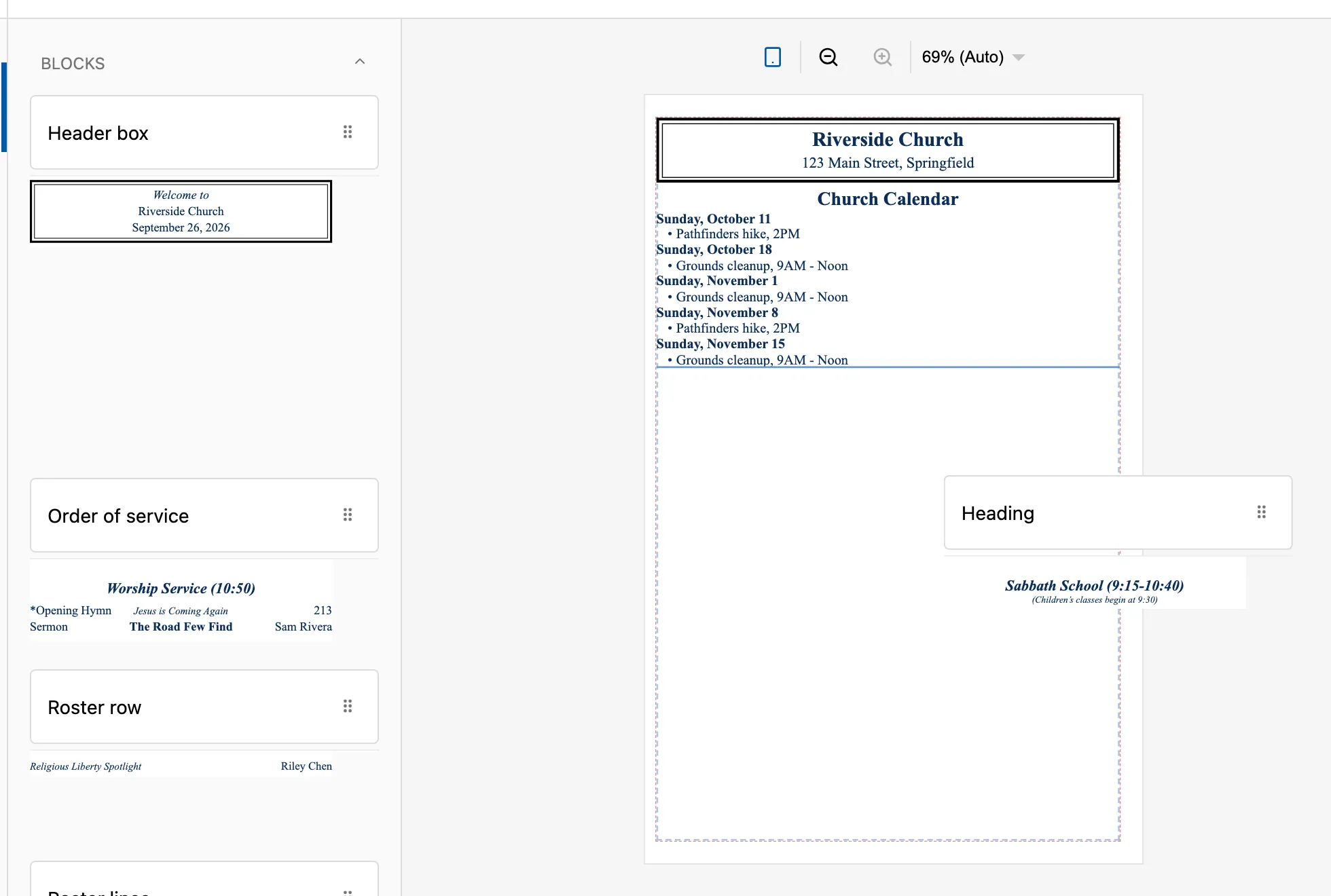
Section titled “4. Add a block”- Find the block under Blocks. Each one shows a small preview. Point at it to see what it’s for.
- Drag it onto the page. A blue line shows where it will go.
- Let go.
Printed bulletins and web pages have different blocks. For example, a web page has Who’s serving where a printed bulletin has Roster lines.
5. Choose what a block shows
Section titled “5. Choose what a block shows”Click a block on the page to select it. Its settings open on the right.
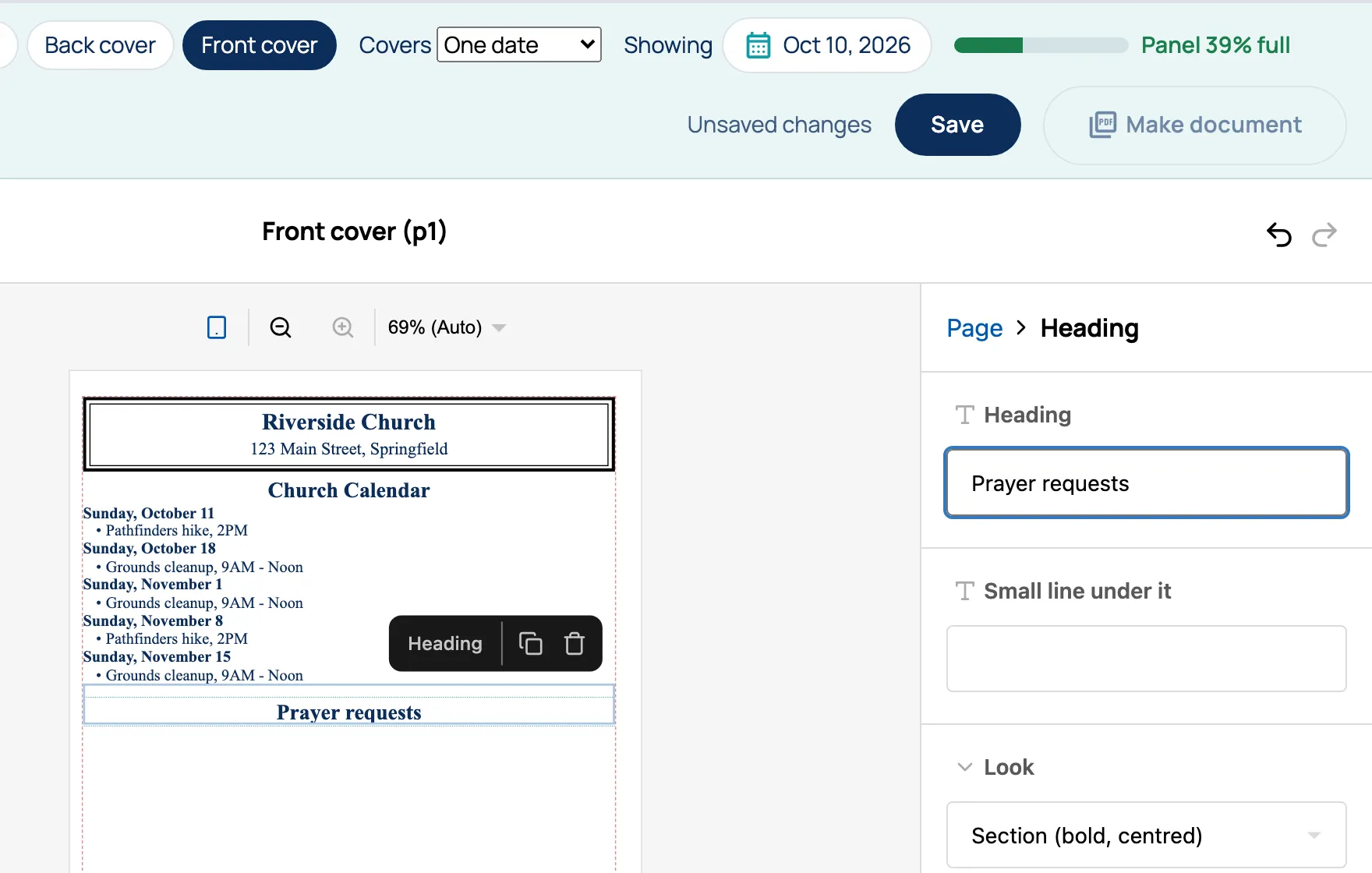
Words you type in a setting, like a heading, are the same every time.
Anything that can come from the calendar has three choices:
- Nothing.
- Type text… for words that are the same every time.
- From the schedule to fill it from the calendar each time. Choose what goes there from the list. Each line shows what it is for the dates you’re showing, or “nothing this week”.
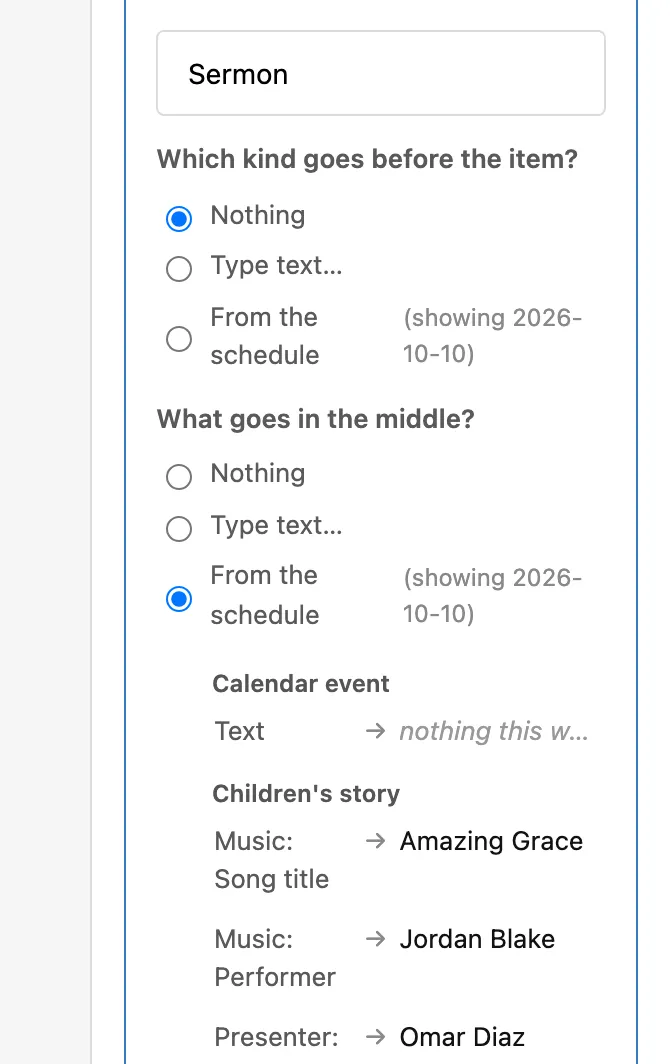
A block with several lines, like Order of service, lists them under Items. Choose one to open its settings.
Once a block is selected, you can also click its words on the page and type over them. Words that come from the calendar open a menu to change the calendar instead. See Changing something.
6. Move, copy or remove a block
Section titled “6. Move, copy or remove a block”A selected block shows a small bar with its name, a copy button (Duplicate) and a bin (Delete).
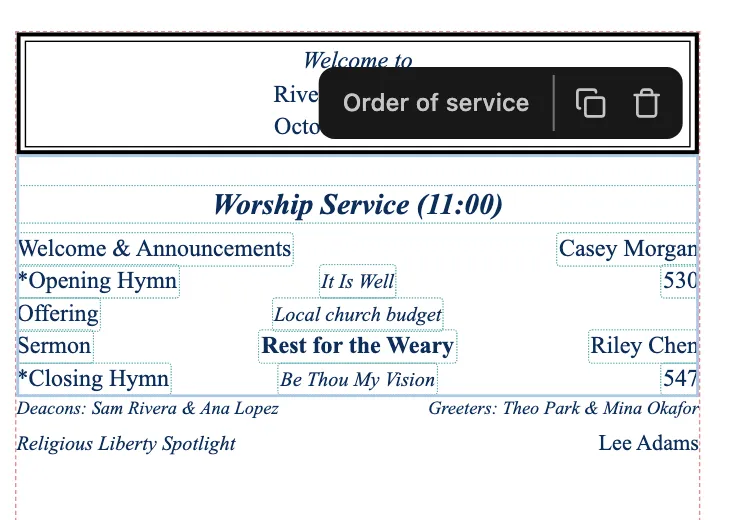
- To move a block, drag it to its new place on the page.
- Delete doesn’t ask first. To bring a block back, choose undo, the curved arrow at the top right.
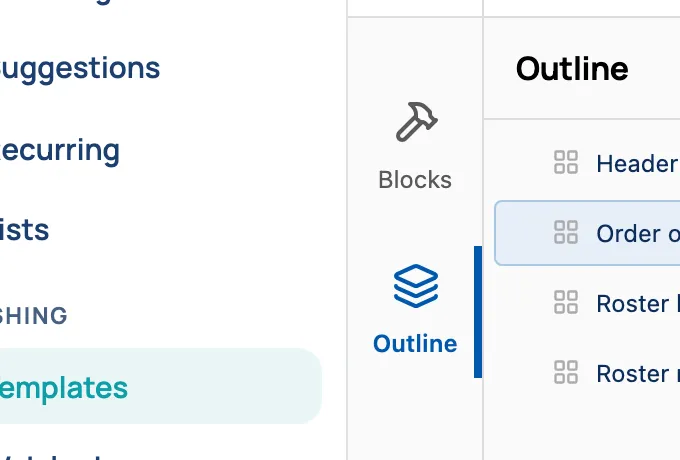
- Outline lists the blocks on this panel, in order. Choose one to select it.
7. Put blocks side by side
Section titled “7. Put blocks side by side”A Side by side block has two or three columns. Drag other blocks into its columns, like a QR code beside the text it belongs to.
- A Side by side can’t go inside another one.
- On a web page, the columns stack on a phone.
8. Check that it fits
Section titled “8. Check that it fits”On a printed bulletin, watch the fit meter. If the panel is too full, it says “will not print”. Point at it to see which words run past the edge. Shorten the words, or remove or change a block, until it fits. A bulletin that doesn’t fit can’t be made.
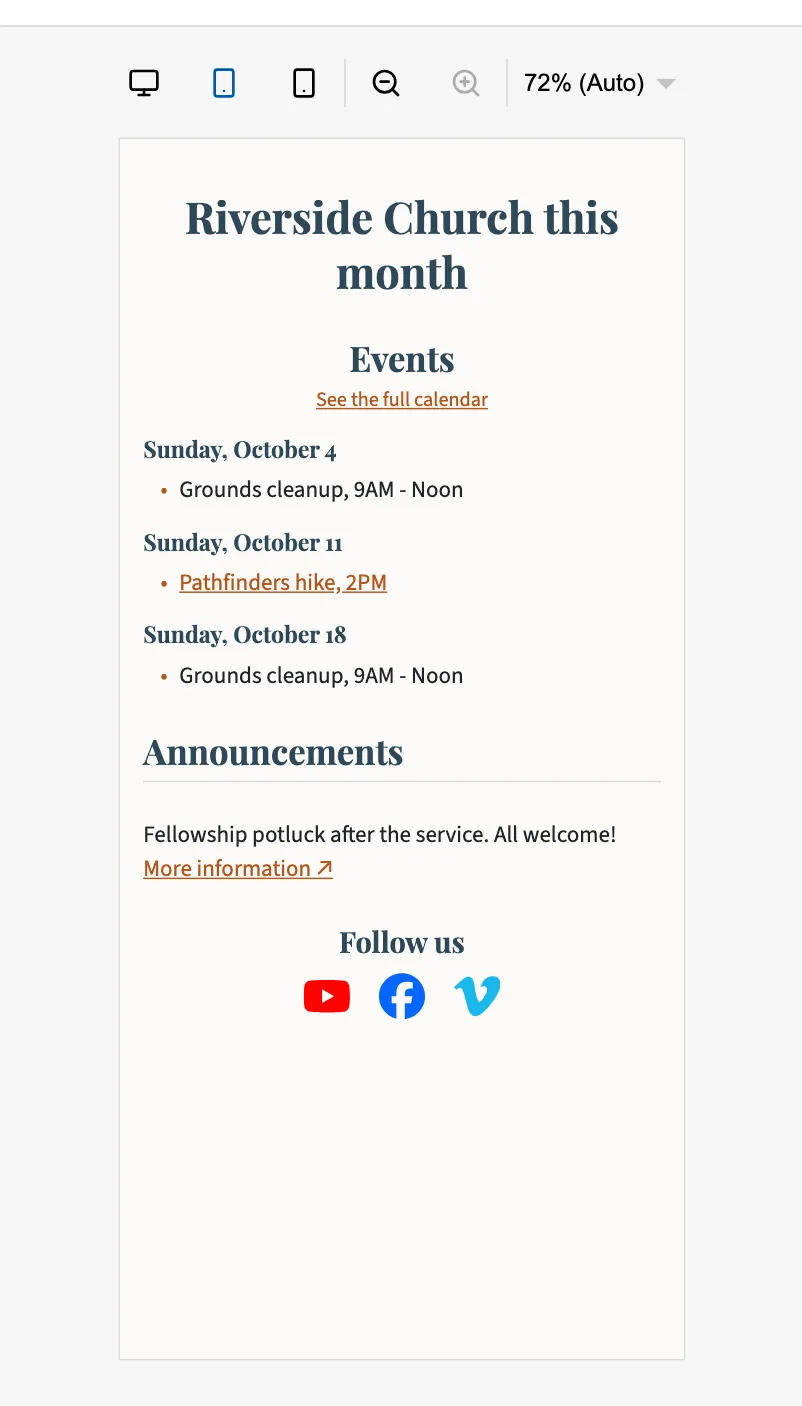
On a web page, the buttons above the page show it on a Desktop, a Phone or a phone turned sideways. If a block is too wide, the bar along the top says so, like “Table is 40px too wide on Phone”.
9. Save
Section titled “9. Save”Choose Save. The bar says “Unsaved changes” until you do, then “Saved”.
- Save before you leave. Going back to Templates, or anywhere else in the console, doesn’t warn you, and unsaved changes are lost.
- Make document waits until you’ve saved, because it’s made from the template as saved.
- If someone else saved it while you were working, Scriblet says “Someone else saved this template after you opened it.” Load their version shows theirs, and your unsaved changes are lost.
10. Make it
Section titled “10. Make it”Choose Make document, or Make page for a web page. See Making a bulletin or Making a page.
Renaming or deleting a template
Section titled “Renaming or deleting a template”- To rename it, change its name at the top left of the editor, then Save.
- To delete it, choose the bin beside it on Templates, then Delete. It can’t be undone.